GOOGLE ANALYTICS: How (and Why) to Set Up On-site Search Tracking in WordPress

Tracking on-site search is really easy with Google Analytics and WordPress. See what terms people are searching when using your WordPress site search box.
tracking-on-site-search-google-analytics

What is On-Site Search?

By this we mean when someone is actually browsing your site and uses your site’s search bar to search within your website.


search-bar-in-sidebar         search-bar

Setting up Google Analytics to track Search

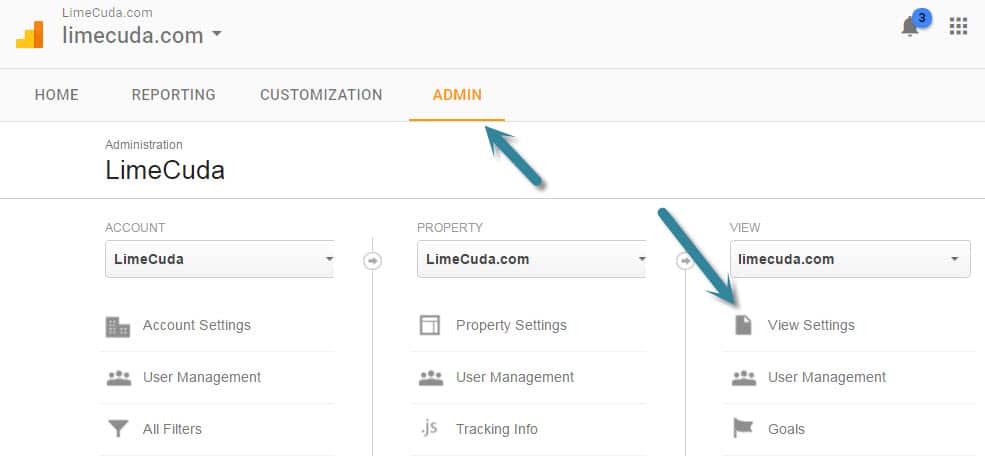
First navigate to the Admin area of your Google Analytics account. Then click the View Settings item underneath VIEW.
google-analytics-admin-search-setting

You’ll see a section towards the bottom like so. Turn Site search Tracking to “ON”. Then make sure there is a Query parameter set of just “s”. This part hooks the WordPress search bar system in to be trackable by Google Analytics.

google-analytics-on-site-search-settings

Where to See the New On-Site Search Data

It may be a couple days before you start to see the data trickling in. Do a couple test searches from other computers to give you some dummy data.

In the Reporting side of Google Analytics look under the Behavior menu item at Site Search >> Search Terms. You’ll see a list of the terms that users searched along with really great data about those visits.
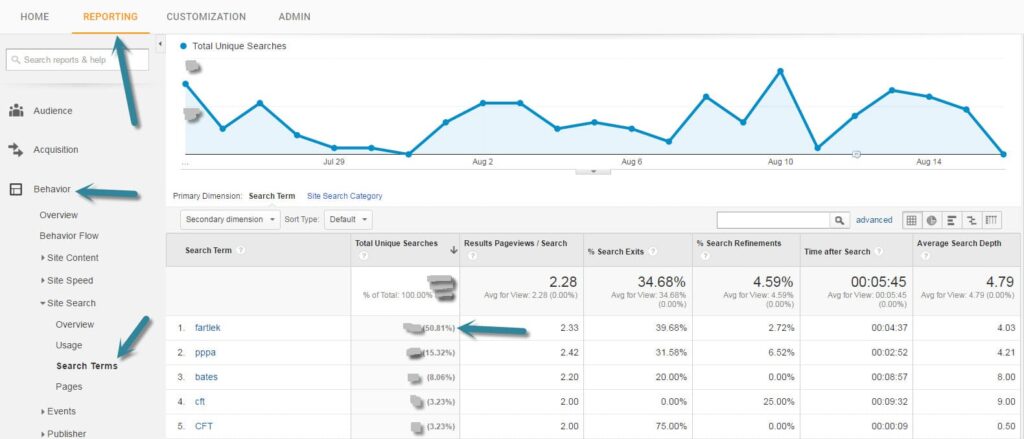
Search Terms from Google Analytics tracking the On-Site Search

What is fascinating about the above report is that for this client they discovered that about half of their search terms were for one specific term (an awkward term but it is a Swedish Running Method)

Let the Search Terms Guide You

For the above project we realized a huge quantity of their users were looking for content that wasn’t easily found on the site. This realization turned into action and we added several menu items to take people directly to the content, as well as creating an entire new specialized website.

Put a reminder on your calendar and keep an eye on what people are searching for when on your site. It could…

  • Give you ideas for new content or posts to write
  • Let you know that you have a navigational issue
  • Aren’t really giving your visitors what they are looking for

Need help setting up WordPress and Google Analytics? Drop us a line and let’s see if we can help you get on the path to better insights about your users.

Video on WordPress – Using YouTube Video Embeds

Thinking of uploading videos directly to WordPress rather than an embed like YouTube? Here’s why that isn’t a good idea.

There are many options available to us when using videos on WordPress. We’ll be looking at the options available over a few blog posts here, however we wanted to kick off with the most accessible option and our most preferred method – embedding YouTube videos.

Pros of Using YouTube Videos on WordPress

YouTube
Firstly, it is free. Self-hosting video or using a premium tool can quickly become an expensive and complicated endeavor. If video isn’t your primary gig, then using a tool like YouTube is probably wise.

Video Loading / Speed

  • Leverage their massive architecture so videos always load quickly
  • Embed codes are intelligent and will load different quality streams based on the viewer’s connection
  • Embed codes play well across most devices – including mobile and tablet

Video SEO and Marketing

  • Your videos can be displayed publicly within YouTube search, this could be just another avenue for someone to find you
  • You can enable monetization and get some share of the ad revenue from your video. This is likely not advantageous if you are hosting marketing or about-type videos.
  • Videos may be called out in Google Search as videos. Could help you rank for terms with video. Check out the Yoast Video SEO plugin too.
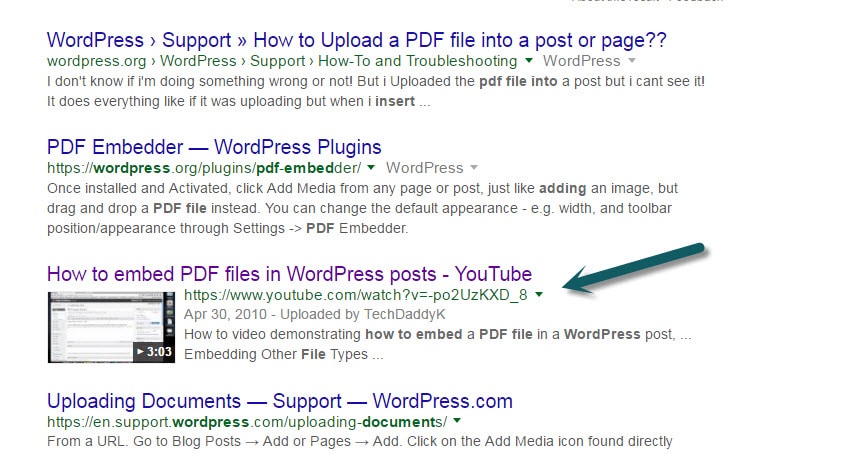
youtube-wordpress-embed-results-google-search

How a Video can look within Google Search

Video Aesthetics

  • Append tags to a YouTube URL to get special features. Add additional tags using an “&”
    Example: https://www.youtube.com/watch?v=7aP4Fi9bC_U?rel=0&modestbranding=1&autoplay=1

    • Stop unwanted related videos from showing up by adding: rel=0
    • Get a nice subtly branded look by adding: modestbranding=1
    • Have video autoplay (use carefully!): autoplay=1
    • See the full list of YouTube URL parameters available including looping and setting a custom start time
  • Just paste a YouTube URL right into the editor and WordPress will auto-embed the video

Cons of Using YouTube for Videos on WordPress

  • Your video is out of your control and ads will be shown on or near it within YouTube
  • You may not like the related videos that show up when viewing on YouTube
  • It isn’t as classy or enterprise a feel as using something like Vzaar or even perhaps Vimeo

There is so much more you can do with YouTube… embedding playlists or galleries, embedding a live stream, having videos load in lightboxes, etc.

We’re pretty big fans of the combo of YouTube and WordPress. Curious about how the other video services stand up in comparison? Subscribe to our monthly insider email and you’ll get those next blog posts as well as a bunch of other cool content once a month.

Working on a site which needs to leverage video? Please reach out and we’d be happy to chat through the options available.


WooCommerce PayPal Payments Advanced plugin

PayPal Advanced

Introducing the PayPal Payments Advanced plugin for WooCommerce.

This is LimeCuda’s first major foray into the Premium WordPress plugin/extension market. We’re very excited!

So what does this do?

WooCommerce PayPal Advanced

This plugin combines two essential elements of an eCommerce cart checkout:

  1. a merchant account
  2. a payment gateway

It does all of this while keeping customers on your site for the entire checkout experience.  This means the user has a unified, branded experience throughout the entire purchasing process.

Key Features:

  • Unlike most on-site, seamless gateways this is only $5/month. Most cost at least $30/month whether you sell anything or not. (The cost can be this low cause PayPal has put their BillMeLater and PayPal Express checkout options along with it)
  • Simpler PCI compliance. Doesn’t require an SSL certificate (although it is recommended for higher user trust)
  • Works by using an iFrame to contain a checkout page hosted by PayPal
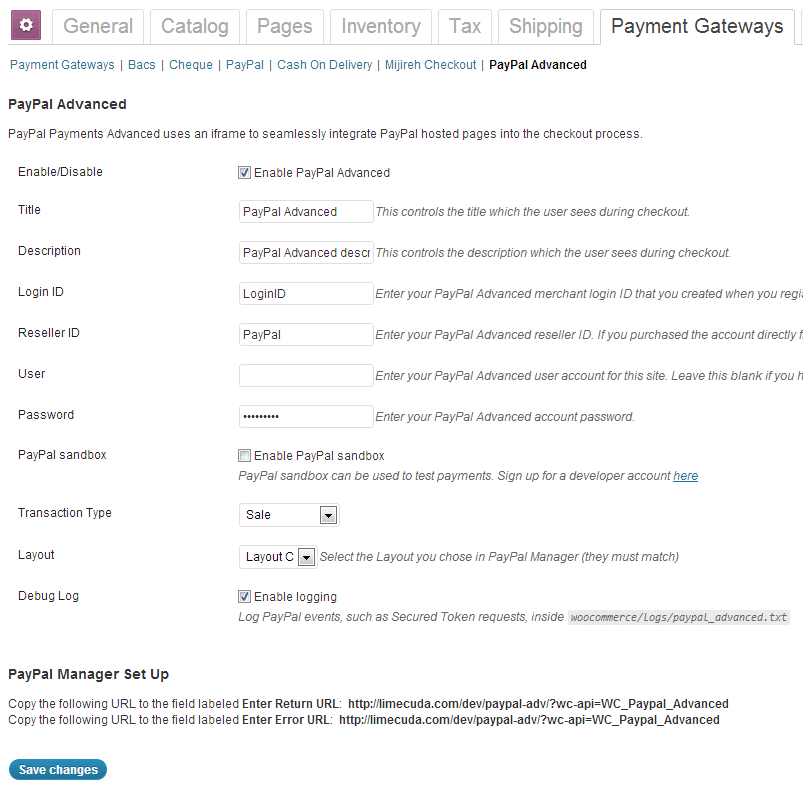
PayPal Advanced WooCommerce settings

Links