Why We Love Paying for WordPress Plugins

Everybody loves free! You get what you want and you don’t have to give up anything for it!

But is it the best “value”- even at $0.00? Is anything ever really free? Can we really get something we want without trading something for it?
love-paying-wordpress-plugins

TL;DR Why we love paying for plugins

  • You can trust they will be updated and improved over time
  • They are a safer cart to hitch your horse to for the long haul (path dependency)
  • Support exists and is usually very helpful
  • The author / company has a VERY keen interest in your success with their plugin

What about free WordPress Plugins?

Don’t get me wrong, we love free plugins too. There are free plugins that we use almost all of our WordPress projects. There are many high quality and reliable plugins built by people that we know (some we like 😉 ) and trust.

Why pay for WordPress Plugins?

However, we really love paying for premium plugins as well. But, when many in our community expect things for free, we feel the need to dig into why we love to pay for WordPress plugins.

Open Source works phenomenally, but sometimes the author / company’s interest in providing well for themselves is an even more effective and predictable incentive.

It is not from the benevolence of the butcher, the brewer, or the baker, that we expect our dinner, but from their regard to their own interest.
– Adam Smith
The Wealth Of Nations, Book IV, Chapter II

Quality of the Plugin Code

The first thing you might expect us to reference here is quality. The assumption is that if you get it for free you must be sacrificing quality.

In reality, free does not automatically translate to a lack of quality. Conversely, paid or premium items do not automatically guarantee a high level of quality.

Quality in WordPress plugins is a highly objective matter. Does the code follow security best practices? Does it do what it promises (and many times, only what it promises), and is it easy for our clients to use. (Note: here is how we feel about extending Enterprise-level WordPress with plugins)

In our space, there are many free plugins that greatly outrank the premium plugin alternatives in terms of quality.

The reasons are also tied to incentives. Companies can build extremely profitable businesses on the back of a free plugin via “Pro” add-ons, extensions, support, and connections to larger service projects. (AKA Freemium) Also, many individuals take pride in their public WordPress reputation and are incentivized to maintain quality as a matter of pride (no negative interpretation implied).

Even though they’re not being incentivized through direct plugin sales, there is still a huge pressure to maintain the quality on a free WordPress plugin.

So, quality could be a reason but why else do we really love to pay for plugins?

Long-Term Reliability

It’s reliability. If there is no path to getting paid for their work, we cannot rely on that developer to keep the plugin updated with current WordPress versions or provide support for the occasional bugs.

For us, this is the most important reason why we’re happy to pay for code used on our client sites. We’re not looking for quick solutions for these features. When we choose a plugin (or build a feature ourselves) we are committing them to a “path dependency“.  We want it to be a fantastic path.

With any plugin that we choose to integrate, we’re looking for long-term, quality, and reliable sources that will best serve our sites for as long as possible.

How about you?

Have you experienced this? Any tools or resources you excitedly pay for rather than get for free? Tell us about it in the comments!

PSA: Please Protect Your Domain Name!

Your domain name is a CRITICAL and hard-to-replace component of your web presence. Take steps to make sure you don’t lose it!

It seems like a great time for a Public Service Announcement. We’ve recently helped several clients work through some really messy situations where they almost lost their domain names. It is no fun I promise! But, it can be avoided!

If you lose control of your domain name you are at risk to lose:

  • Your current website being accessible on that domain name
  • Any rankings, SEO value, or links pointing to it
  • Any email being sent to it
  • Worst yet, someone could scoop the domain name and redirect to a different site or put up something nefarious

First, what is a domain name

Obvious right? A domain name is your address on the web, like limecuda.com or google.com

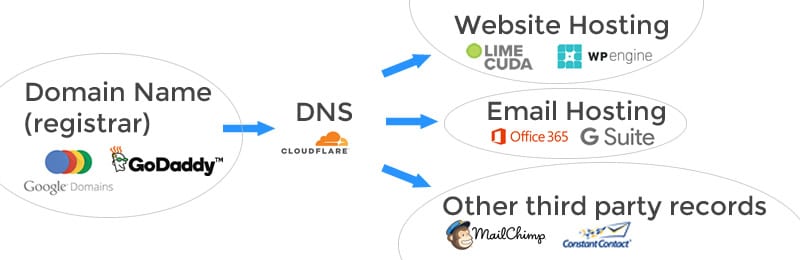
A domain is bought at what is called a “registrar” and has a yearly renewal fee. It can be confusing because the registrar may also provide website hosting, email hosting, and other services all wrapped into one. Sometimes the DNS is controlled at the registrar or at the webhost. However, they can be all separate services and look like for example…

Some common registrars are GoDaddy (we use and recommend), Google Domains, Hover, register.com, Network Solutions (avoid if possible), and NameCheap,

How to prevent losing your domain name

These are the most common issues we bump into…

  • The email address connected to the registrar account is one that isn’t often checked or is using the email of a former employee
  • The credit card has expired
  • The domain isn’t set on auto-renew
  • You didn’t realize you were paying for a domain name with that vendor (it is confusing as there is also sometimes separately: website hosting, email hosting, and DNS)
  • Have in writing what legal entity or person owns the domain name

Alternatively, we’re happy to purchase / hold domain names on your behalf. This is a courtesy service (with a minimal fee to cover our cost) and means the domain is extremely safe and secure in our account. Whatever the route you choose, please treat your domain name like your birth certificate or some other irreplaceable document.

What to do if you’ve lost your domain name?

First, depending on the registrar you were using, there may be a grace period. GoDaddy is especially generous here while Network Solutions extorts you with a massive fee. Call up your registrar immediately and see what your options are. If someone has already scooped up the expired domain you may be able to negotiate them selling it back to you. I recommend using a service to negotiate on your behalf. There are lots of scammy domain squatters out there.

You may need to look for a replacement domain. Migrating email and website hosting to it will be painful but at some point it may be your only option.

Don’t lose that domain name! Please contact us if you want to chat through your options.


RUTHLESS EFFICIENCY: The Secret Magic of Clipboard History

This begins a new series we’re doing on “Ruthless Efficiency”.
Short tips to redeem time from mundane, repeatable, inefficient tasks. The result: more joyful work, less stress, more time for creativity.

ruthless-efficiency-clipboard

To start, let’s take a look at something already built into your computer, the clipboard. Your computer’s clipboard can be so much more than copy/paste. Learn how to add hidden talent and make your computing more effective AND efficient.

The Normal Clipboard

You know the drill, it is a hidden storage place where something lives that you just copy/cut and then when you need it you “paste” it. Simple, binary, one thing in, one thing out.

Common Clipboard Keyboard Shortcuts

Cut
Windows: Control (Ctrl) + X
Mac: Command (Cmd) + X

Copy
Windows: Control (Ctrl) + C
Mac: Command (Cmd) + C

Paste
Windows: Control (Ctrl) + V
Mac: Command (Cmd) + V

The Efficiency Beast of a Clipboard

This is really one of my favorite tools I use all-day-long. It is called “clipboard history”. The concept is simple, your clipboard ends up accumulating all the stuff you copy and you can go back and re-paste stuff from days or weeks ago. I can search and recall text I copied weeks ago or thousands of copies ago.

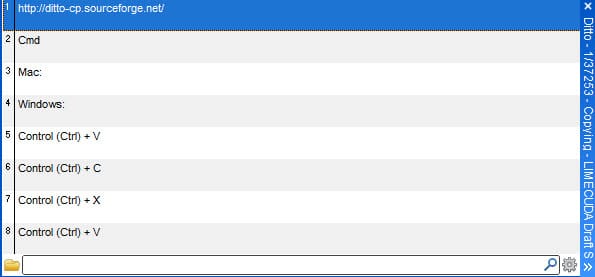
I use a Clipboard history tool for Windows called Ditto. While it is free and works great, it is not the prettiest…clipboard-history-ditto

I just hit a special key combination and it pulls up the above interface. I can just start typing part of a previous item I know I had copied. So if I had previously copied:

<p id="aesc"><a href="https://www.aesc.org/" title="AESC - The Association of Executive Search and Leadership Consultants" target="_blank"><img src="/assets/img/common/aesc.gif" alt="AESC - The Association of Executive Search and Leadership Consultants"></a></p>

I could find it by starting to type “aesc” or “href” – basically any part of the paste I remember can help me recall it to use again.

Features of Ditto

[genesis_column size=”one-half” position=”first”]

  • Easy to use interface
  • Search and paste previous copy entries
  • Keep multiple computer’s clipboards in sync
  • Data is encrypted when sent over the network

[/genesis_column]

[genesis_column size=”one-half”]

  • Accessed from tray icon or global hot key
  • Select entry by double click, enter key or drag drop
  • Paste into any window that accepts standard copy/paste entries
  • Display thumbnail of copied images in list

[/genesis_column]

Other Clipboard History Tools

The time savings and ability to quickly repeat tasks make this an essential tool for the computer power user!

Hosting and Maintenance for Enterprise WordPress Sites

We previously looked at what it means to extend WordPress via plugins and custom coding for enterprise websites. However, this is only a small part of the “battle” when it comes to working with enterprise websites.

wordpress-enterprise

The 5 Key Aspects of Enterprise WordPress Hosting & Maintenance

Enterprise websites are never “set it and forget it” properties. They need to be regularly backed up, monitored, updated, and maintained.

Use this post to do an audit and determine if your site is on stable ground.

There are many great solutions out there. We carefully tailor a hosting setup for each client that involves sometimes dozens of tools working in harmony to create an optimal hosting and maintenance setup for WordPress.

1. Hosting Security

It all begins with a properly architected server setup. This is basic – just like having deadbolts on your doors and locking your windows.

Things we look for (and provide) in our enterprise WordPress-specific hosting:

Security Practices of Major WordPress Hosts

2. Keeping WordPress Updated

The biggest security risk in WordPress is not having the codebase updated to the latest versions. This includes the WordPress core, plugins, and the theme. In recent security reports, the majority of WordPress-related hacks are due to sites using outdated versions of WordPress or outdated plugins that have had vulnerability patches publicly available for well over a year.

We use site management tools that let us update all our client sites at once and within minutes of a security patch being released.

3. Regular Site Maintenance

In this case, for “maintenance” we’re not referencing retainer-type work where active feature improvements are being made to the site. Think of maintenance as the aforementioned regular updates being performed but with a careful eye to making sure the site keeps working as it should.

Conflicts are pretty rare but in an enterprise-context, a key feature failing could mean serious lost revenue or at a minimum a black eye on the brand reputation.

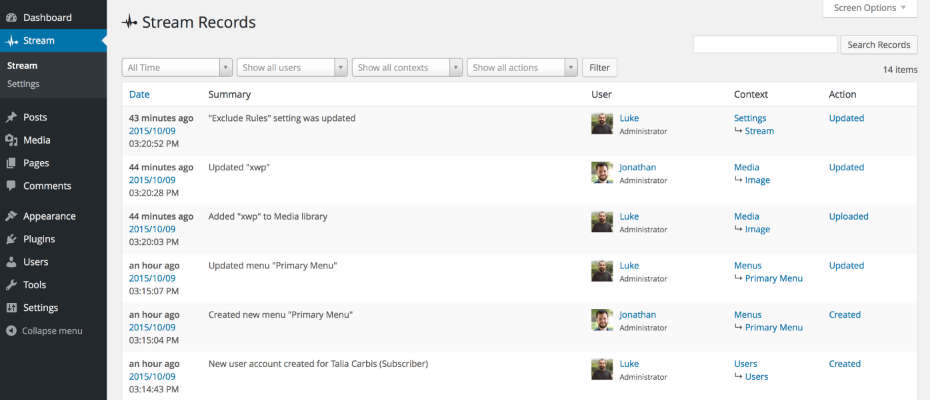
We use a brilliant plugin called Stream that is basically a black box for WordPress. It records all the stuff that happens on the backend of the site. This is really useful for tracing back what went wrong. It let’s you see who-did-what-and-when.

stream-plugin

Scheduled and Quality-Assured update intervals

A security update should usually be applied immediately. Non-critical updates and feature releases are better applied at set intervals (like once a month or every two weeks) That way these can be done on a staging site, or when the site has low traffic. Once a batch of updates is applied it is then efficient to go through an extensive QA list to ensure the sites look and functionality is still perfect.

Tip:
Do you have a staging area that you’re able to test your plugin updates to make sure everything is going well before running those updates (or migrating your staging) on live?

4. Site Backups and Restoration

Regular, full, off-site, and redundant backups need to be maintained with the ability to restore a site at any point in time.

If something ever goes wrong you need a quick way to restore! 

How often a site is backed up will be dependent on the type of site you’re hosting. For example, a corporate blog with daily posts would probably be adequately served by a daily backup. However, a high-volume, e-commerce site really needs a real-time backup solution to protect a complete list of customer transactions.

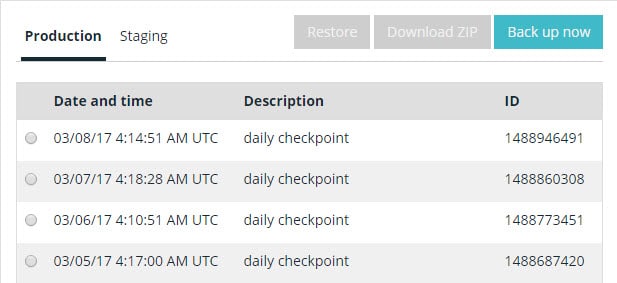
We use a couple backup solutions but at a minimum we utilize WPENGINE’s daily automatic backups.

wordpress-backups-wpengine

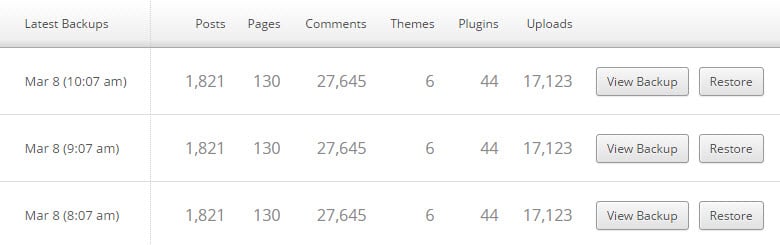
VaultPress has a great real-time backup feature for business-critical / E-Commerce sites. Additionally there is constant malware detection and this is a sweet deal.

vaultpress-ongoing-backups

5. Keeping a close eye on the website

For enterprise websites on WordPress, there are four types of monitoring:

  • Uptime monitoring
  • Security monitoring
  • SEO / Analytics
  • Performance / Speed

Uptime Monitoring

For uptime monitoring, the aim is always 100% uptime. But we live in a very complicated world with many moving parts and human error. (see recent Amazon S3 downtime due to a wrong keystroke)

Uptime Robot is a good monitoring tool that lets you send alerts to emails, texts to phones, RSS, updates in Slack, etc.

uptime-robot-dashboard

Security Monitoring

We use a combination of tools but an absolute key is to have the site being tracked in Google Search Console. This is free and it will email you if your site is ever suspected to be compromised. Google is very careful about sending search traffic to malware-infested sites. (Pro Tip: connect Google Analytics and Google Search Console).

If you are needing a one-off check to see if your site is clean, try the Sucuri SiteCheck tool.
Sucuri also has a good plugin to manage WordPress Security

SEO / Analytics

There are tons of great tools and ways to do this. (Google Analytics of course) Analytics and traffic measuring tools can also be used to alert you to all kinds of problems with your site being down or having malware.

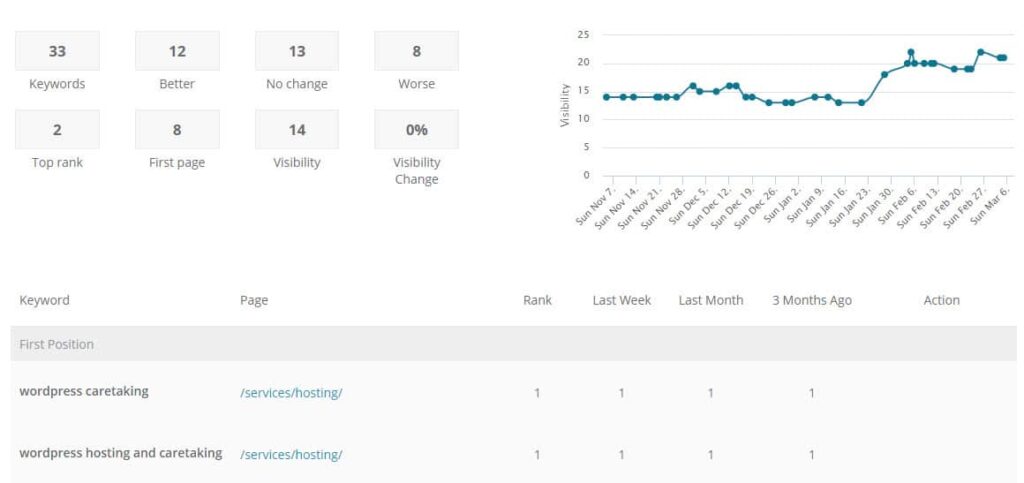
Being able to see keyword rankings can also be key to monitoring the site’s ongoing success.

seo-ranking-tracking

Performance / Speed

It isn’t enough to know that your site is up – it also needs to be loading quickly! We have alerts to head off any issues if a site starts loading sluggishly.

A good quick test for site speed is the Pingdom Website Speed test.

WordPress can be a great tool for enterprise needs but it must be hosted correctly and properly loved! Have a question or something to add? Comment below…

Finding and Using Images for Your Blog Posts

It might seem simple, search Google, find an image, and then use it… However, for the best results and avoiding legal trouble, there is a better way…

perfect-image-wordpress-post

Why use images in blog posts?

I don’t need to work hard to sell you on this. A text-only blog post is pretty dull and uninspiring.

Adding an image to a post (or page) livens them up with visual interest AND it helps someone more quickly understand what your post is about. (#humblebrag we really like what the image conveys on our recent website launch ideas post)

Why you MUST be careful about where you get your images!

Intellectual Property and “creative use” is an extraordinarily complex subject and even differs across the globe. Your best bet is only use images you are permitted to use.

We’ve had several clients who accidentally used an image they didn’t have permission to use. This can result in a strongly worded letter threatening legal action. This can sometimes feel like a bit of an extortion game to try to get you to pay up. Just avoid that mess and use a little extra effort to get legitimate images.

Where is the best place to get images?

Here are four good sources for usable images….

1. (FREE) Image Search Engine

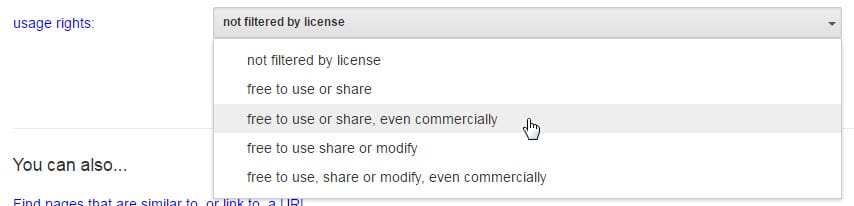
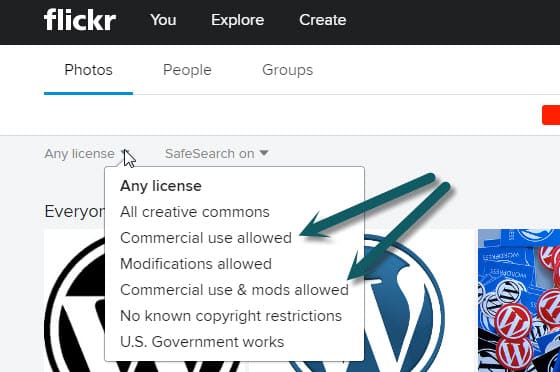
When you use Google Image Search or Flickr there are options to filter by license. Find free images already cleared to use.

Google Image Search
Click the “Advanced Image Search” when searching in Google Images. Filter by the right license and then go find that image!

google-image-search

Flickr
Like Google, Flickr has a massive collection of great images.

flickr image license


2. Stock photography sites

We have a monthly subscription to Big Stock Photo. There are quite a few great stock image sites. Be prepared they can easily be $10-40 per image but this is a small cost if the image is perfect.

Free stock photo sites: unsplash.comphotopin.com, magdeleine.co, picjumbo.comdeathtothestockphoto.com, morguefile.com, pixabay.com,

3. Have professional photos taken

This is our favorite option. Get a local professional photographer to take a bunch of pictures. Make a list of shots you know you need and also have shots take of anything that is unique or interesting – you never know what future photo needs may arise. Here are some ideas of what to get photographed:

  • Individual employee headshots
  • Team / group shots
  • Office building, signage, foyer, office space
  • Employees in action (within offices or doing whatever work you’re known for)
  • People naturally going about their day in your office environment
  • Unique art pieces or awards
  • Factory, storage areas, warehouse space, etc.

4. Ask permission to use

If there is a really great shot on someone’s website – they might be willing to let you use it. In this case, contact them and get their written permission to use it. Setting up the “ask” well can go a long way to getting clearance.

Great photos really do make-or-break a website. Take care with where you get them and choose great photos!

[SEO STRATEGY] Interlinking Your WordPress Content and Gaining Rankings

Rankings are the holy grail and goal of SEO. A great (overlooked) tactic is interlinking between your own content. We’ll show you a technique to make your SEO interlinking more effective.

The What and Why of Interlinking

When you link to a page, Google not only sees that as an indication of trust it gives them an idea on the subject matter of the page.

If we have a page on our site all about our “WordPress Expertise” and we intentionally linked to it with that phrase or variations of it – Google would get the idea what that page was all about! (should be noted that linking to that “wordpress expertise” page within this post is so meta and a perfect case-in-point 😉 !)

Now, getting these links from other websites is even better but you can and should be interlinking within your own site! There is a “PageRank damping factor” that won’t let you just keep escalating the power of interlinking on your own site, but you should still interlink when it makes sense and do it with SEO intentionality.

How to Make Interlinking Manageable

If interlinking isn’t easy, you won’t do it!

In WordPress adding a link to a piece of content within the same site is stunningly easy.

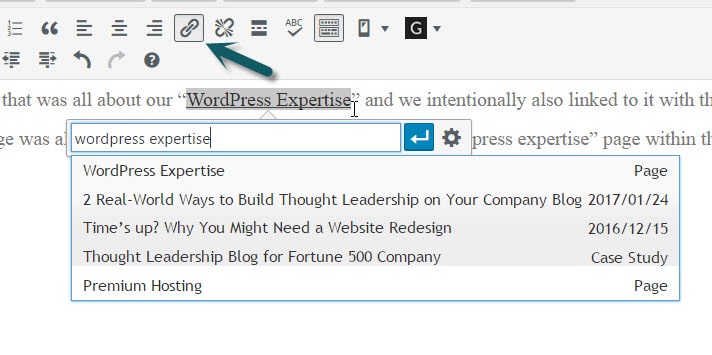
Highlight the text you want linked, type Ctrl+k (Command+k on Mac) or click the link icon. Then start typing a part of the title or URL for the content you are wanting to link.
interlinking-easy-in-wordpress

Assign Keywords and Keep Track to Interlink Like a Pro

If you only have 5 keywords that map to 5 pages, then it may be manageable within your head. However, if you have dozens of keyphrases you are pursuing or you are working within a team of content writers then you need a better method.

Here’s the Keyword Interlinking Strategy that works for us…

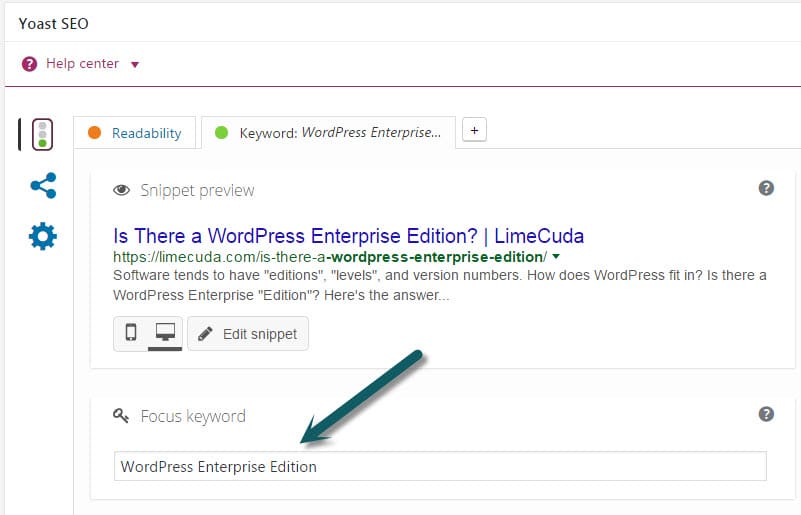
1. Assign a Focus Keyword to Each Post
In the Yoast SEO tool this is easy and hopefully you’ve been doing it as you go along. If not, go back through and assign a focus keyword (think keyphrase) to each post.

wordpress-focus-keyword-yoast

2. Export a List of Your Posts
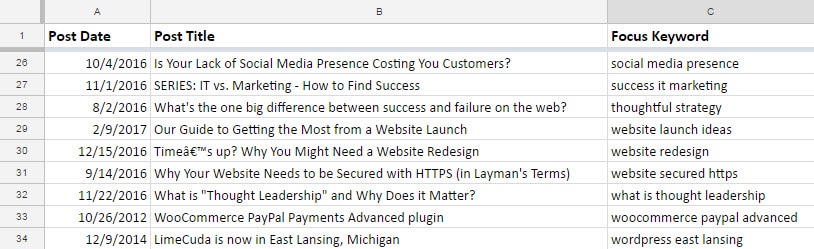
Use a tool like WP CSV to export a CSV file of all your posts. This file contains a column named “cf__yoast_wpseo_focuskw”. This “custom field” value is what contains your SEO Focus Keyword. So now you have a list of all your posts with the keyword mapped to each.

We recommend importing this CSV into a Google Sheet. Then you can easily share it with your team and keep it updated over time. If you only occasionally add posts it may be worth it to just manually add new Post Titles and Focus Keywords to your Sheet as time goes on.

seo-focus-keyword-tracking-for-posts

3. Use the Spreadsheet when writing content
When you are writing a post (before and after) reference your spreadsheet and see if there are natural (and helpful!) ways you can link to these posts – using the keywords!

Over time you can have a nice interlinked blog system that keeps users reading your content and Google understanding and ranking it!

Our Guide to Getting the Most from a Website Launch

website-launch-buzz

Launching a new website can feel like earning a degree or having a baby. It is a big deal and you beam with pride and people are generally happy and encouraging.

A website launch can be a great marketing opportunity, here’s how to NOT let it go to waste. Here are our best website launch ideas gleaned from hundreds of launches,

Let People Know About Your New Look

If you have people that come to your website often, it might help to ease them into a new and unfamiliar experience. Change can be a great thing but (often) people don’t like change.

Launch Ideas to Spread the News

  • Make sure to build the excitement internally first! Share the new website launch company-wide first and your employees can become a “street team” for also sharing in the following action items.
  • Email people – this can be one-by-one to your closest clients and peers or more generally to an email list
  • Write a blog post announcing the site launch. You can then link to this in your email from above
  • Share the news on Social Media (LinkedIn, Facebook, Twitter)
  • Add a link in your email signature mentioning the launch
  • Is there local or industry PR you could reap? (think chamber of commerce, local newspapers, and industry associations)
  • Try a good ol’ Press Release

Don’t forget stakeholders, vendors, and collaborating companies!

It might even be good for buy-in to ask for feedback at different stages of a launch.

Having a new site is a great excuse to reconnect with customers or people you haven’t touched base with in ages. In relationship marketing, having legitimate touchpoints is so helpful. People want to know you care about them and most people are truly encouraging if things are going well for you.

Commemorate the Launch Occasion

Your new website was a big investment for your team in terms of planning, building, and launching – at all points, your team was likely very involved in the process. There is a lot of emotional investment from all the blood (hopefully not!), sweat, and tears. So make a big deal of this occasion.

We really don’t recommend breaking a bottle of champagne over a laptop…

However, it might be a great excuse to throw a company party or at least break out some cupcakes. One recent launch the company held an employee picnic complete with silly games, cupcakes, t-shirts, and company-branded sunglasses!

Don’t Be Afraid to Communicate the “Why” for Your New Website

What you do with communicating “why you rebuilt your website” will vary by industry. Our industry and personal preference tends toward the highly transparent side. For example, maybe you built your site to reach new customers or target market. Or maybe you realized your old site wasn’t doing everything it could to best serve your existing ones.

Don’t be afraid to point out the new areas that you worked hard to improve. Here are some to jumpstart your thinking….

  • Better mobile or tablet experience for the X% of your traffic that is using a smaller screen device.
  • Product lines or service offerings changed?
  • Easier ways to contact the right person
  • Added an area of documentation or FAQs?
  • Do you now have a blog or an email blast list?

Timeline of a Well-Executed Website Launch

Like a wedding or birthday party, what you do before and after execution is almost as important as the actual event. Here is how our agency tends to approach launches:

1. Pre-Launch Teasing
It might be fun to share coming soon notes on Social Media or in email newsletters. Make this fun, use memes, clever graphics, and show some humanity gosh darnit.

2. Pre-Launch Review
This is when your key team is reviewing the website and making sure the messaging is on-point, there are no glaring spelling errors or broken user paths. This is a great opportunity to get more of the company that wasn’t directly involved in the process invested in the new site and excited about the new website that is about to launch.

3. Soft Launch
Your technical team (maybe us!) will actually stand up the new site. For some launches there is a period of DNS propagation that can take anywhere from 30min to 48 hours. Our preference is late evening and even Friday night soft launches if possible In the Soft Launch period you might send the link to a wider circle of employees, key partners, and your best customers.

4. Launch!
This is the day you really start to make noise! Host your party, share the news, get pumped up.

5. Post Launch 
Make sure to quickly squash the inevitable spelling errors and bugs that crop up. Monitor the analytics. And then keep improving the site – don’t let it go stale!

Bonus:
Our team works off of a massive launch checklist (we’ll share soon!) but one thing to make sure you do is to make note of the launch date so you can compare traffic, leads, etc. We usually make an annotation in the Google Analytics for the website launch.

Use your website launch to boost your company’s energy level, self-esteem, and client relationships. Have ideas to share? Please comment below.

What Does “WordPress for Enterprise” Really Mean? – Extending WordPress

wordpress-enterprise

We previously addressed the fact that there isn’t exactly a WordPress Enterprise edition. However, you will regularly see people talking about “WordPress for Enterprise”. What does this mean? How does this differ from “WordPress for bloggers”?

In this post, we’ll look at how you would approach extending WordPress for an enterprise site.

A Different Approach to How WordPress is Extended

When using WordPress to develop your website, the core software can be extended in two ways:

  1. Via plugins
  2. Via your active theme

This extension of capabilities is the same for both blogs and large enterprise websites. However, there is a key difference when approaching extension for enterprise websites – the intentionality of the extension.

Intentional, Custom Development

It would be a gross misuse of resources to custom-develop every feature built for an enterprise website on WordPress. However, custom development is far more common for enterprise-level websites.

For these sites, we don’t want to piece together a feature that is “kinda what you need” using a variety of different plugins. We want to build exactly what you need in the cleanest way possible. This greatly reduces the potential points of failure for the ongoing maintenance of your site and means running your site is much more enjoyable.

Custom Development Security

When doing custom development, there should always be an intentional review for security best practices. For example, when developing any sort of user interaction, a careful review of every action should consider:

  • Capability – Does the user have permission to perform this action?
  • Intentionality – Is the user intending to perform this action?
  • Validation / Sanitization – Am I getting the type of content that I’m expecting?
  • Escaping – Is the content I’m outputting safe to display?

Tip: There are some great engineering standards that I’ll commonly reference when building out features for client projects. 

Careful Vetting of Plugins

There will also be free, open-sourced plugins (there are almost 50k free plugins!) as well as premium plugins used on an enterprise website. For a typical WordPress website, this can be a pretty haphazard process. Search for the feature you want and install the plugin!

But, for enterprise websites, the plugins used will be carefully vetted. Among other factors, a few key things need to be considered:

  • Popularity of the plugin (e.g. how many times has it been downloaded)
  • Reputation of the plugin (what does a Google search reveal)
  • Reputation of the plugin developer 
  • Update history of the plugin (how often and when was the last update)
  • User review history of the plugin
  • Plugin support history (take a look at the support tab threads – is the developer responsive? Are there many problems?) 

The goal is to have all code that extends the default WordPress functionality on your site to be secure and performant. This is a crucial foundation to have set when we start to factor in the considerations needed for hosting and maintaining WordPress for Enterprise.

Sign up for the LimeCuda Zest to learn more about…

Considerations for Hosting and Maintaining WordPress for Enterprise Websites.

2 Real-World Ways to Build Thought Leadership on Your Company Blog

thought-leadership-company-blog

In a previous post, we covered what Thought Leadership is and why it is important for your business. Now, we’d like to dive in a little deeper here and give you a few tips on how you can build your reputation as a Thought Leader using your personal or company blog.

1. Answer the Questions Your Audience is Asking

In the most basic sense, someone is a thought leader because they have answers. They have experience that a specific audience is seeking to learn from.

When looking to create content for an audience, you need to first determine who your audience is and what their interests may be. Even further, if you can determine the daily, small pain points this audience experiences, you can focus your content on addressing those pain points.

One of our long term clients shares their immense collective experience in retained search on their blog. They try to anticipate the questions their clients might have and then write a helpful post to provide the answer.

Tip: You can learn the exact information your audience is looking for by tracking the search queries made on your site.

2. Give Your Audience an Opportunity to Engage

It’s an easy temptation to allow your blog to become a one way form of communication. We can sometimes rest on a feeling of safety and security by imagining we’re just dumping our content into the world for our readers to just consume as-is.

However, we must give our audience an opportunity to engage.

Thought Leaders use their content as a starting point for further engagement with their audience. The ability to actually bring experience to a conversation is key to building thought leadership – not just the ability to scream facts from your own soapbox.

A couple of ways to pursue engagement with your audience:

Give visitors the opportunity to comment on your blog posts.

For me, the best part of most informational posts is an active comment section. Many times, your post alone isn’t enough to answer the questions someone may be searching for. However, if the comments are active, it is likely someone else has engaged with you to pull more valuable information out of the topic.

Ultimately, your blog posts can be considered a way to begin initiate the conversation with your audience and the comments, your greatest opportunities to let your expertise shine.

Actively engage on Social Media

Active engagement on social media gives you an outlet for your content. It allows you to build up a community in a more personal way and engage with your audience where they are.

Also, like the considerations above for the comments sections, sharing your blog posts on social media can be a great conversation starter. And conversation and engagement is the best way to build yourself as a thought leader.

We’d love to hear from you and about your journey of thought leadership. Comment below if you like or send us a message.

Is There a WordPress Enterprise Edition?

Software tends to have “editions”, “levels”, and version numbers. How does WordPress fit in? Is there a WordPress Enterprise “Edition”?

wordpress-enterprise-edition


The most confusing part is… there are actually two types of WordPress…

1. WordPress.com / Hosted Platform

This is the flavor of WordPress you can sign up for at wordpress.com. It is a powerful, free tool you can sign up for and be off blogging within minutes. Unless you upgrade, your site domain name will end in “.wordpress.com” This type of WordPress is not ideal for business or enterprise use. There are some good upgrades available but you don’t have server access and the ability to configure function and aesthetics is relatively limited.

2. WordPress.org / Self-hosted / Software

The other type of WordPress is WordPress the software, this is found at wordpress.org. A flavor of this software actually runs the WordPress.com example above. This is the Open Source software that can be run on a server you control.

This is the software we develop on top of and what we mean when we say “WordPress”. This Content Management System (CMS) can flexibly adapt and be a great fit for enterprise needs. It can be a blogging tool, a marketing site, a member portal, a dynamic application – or any combination. It is immensely powerful and well-suited for enterprise use.

Is There a WordPress Enterprise Edition?

No, when speaking of WordPress there is only one software edition. There is a multisite variant of WordPress but it is still all part of the same WordPress. The blogger sharing stories of their travels for their family to read and the Fortune 100 website running WordPress are on essentially the same platform. Granted, there are many ways the software can be extended to make it more suitable to the specific needs of large enterprise companies.

What About WordPress Version Numbers?

Much like operating systems where you have “Windows 7” or “Mac OS X”,  WordPress has version numbers and is constantly improving. For example, WordPress is currently at version “4.7.1”. WordPress iterates rapidly with about 3-4 major releases a year.  These updates generally break down into…

Major Update Releases

This would be 4.7 or 4.8 – this type of update usually has great new features and advancements.

Point Releases / Bugfix / Security Releases

These would be like 4.7.1 or 4.7.2 – they usually fix little bugs or in very rare cases patch a security vulnerability.

Fun fact, each WordPress release is named in honor of a jazz musician.

wordpress-4.6

WordPress is a terrific platform for enterprise use. It has the features, security, scalability, and corporate adoption to make it a terrific contender for blogs, a CMS, or even an Application Framework.
Even though there isn’t a WordPress Enterprise Edition per se, WordPress can be easily tailored to the particular needs of large enterprise companies.