Fantastic Insights from the Google Analytics Mobile App

insights-in-google-analytics

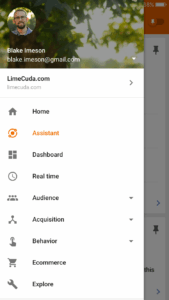
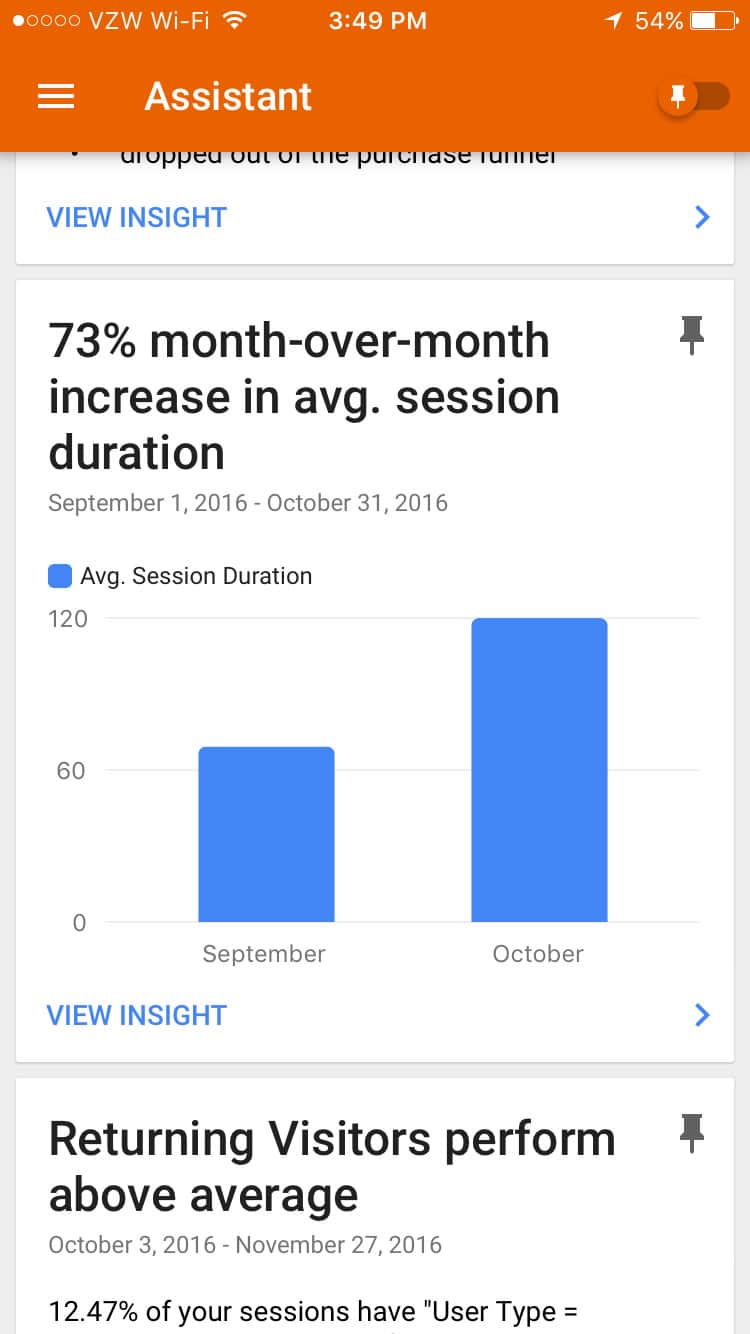
Google Analytics recently added a really neat tool called “Assistant” that gives you automatic “Insights”.


The tool is only available in the Google Analytics Mobile App (available for Android or iPhone) .

Examples of the kinds of goodies the app will give you:

As with all data you need to approach it with wisdom. Not all “insights” are actually insights.

The tool will give you positive and negative insights. Occasionally checking this might alert you to a site issue of which you weren’t aware. Conversely, you might discover one of your posts picked up some steam or a big site linked to you.

This handy Assistant feature is coming to the browser at some point I believe.

Go download the app and login to your Google account. You may find undiscovered gems in your analytics data.

GOOGLE ANALYTICS: How (and Why) to Set Up On-site Search Tracking in WordPress

Tracking on-site search is really easy with Google Analytics and WordPress. See what terms people are searching when using your WordPress site search box.
tracking-on-site-search-google-analytics

What is On-Site Search?

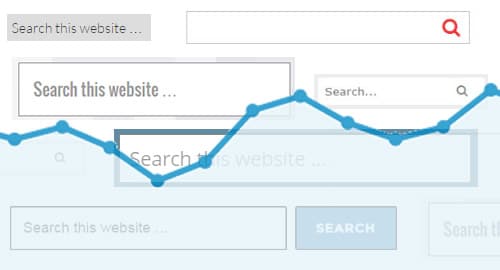
By this we mean when someone is actually browsing your site and uses your site’s search bar to search within your website.


search-bar-in-sidebar         search-bar

Setting up Google Analytics to track Search

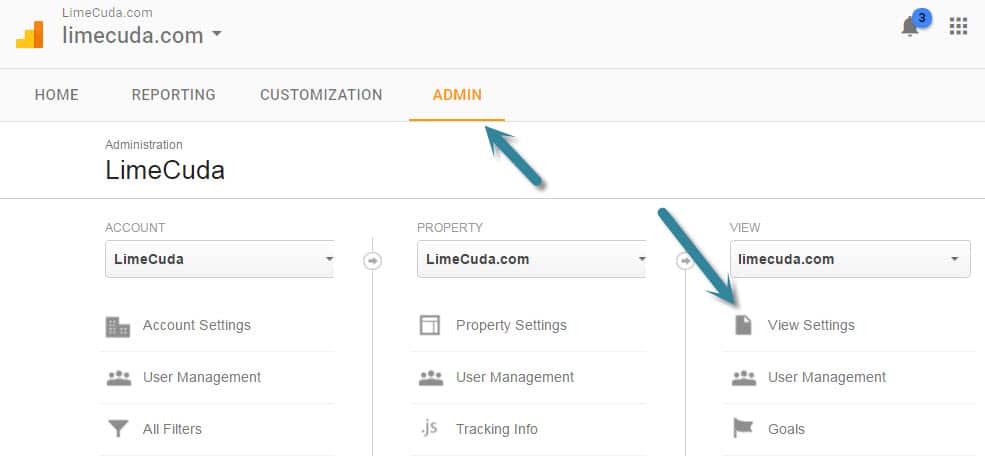
First navigate to the Admin area of your Google Analytics account. Then click the View Settings item underneath VIEW.
google-analytics-admin-search-setting

You’ll see a section towards the bottom like so. Turn Site search Tracking to “ON”. Then make sure there is a Query parameter set of just “s”. This part hooks the WordPress search bar system in to be trackable by Google Analytics.

google-analytics-on-site-search-settings

Where to See the New On-Site Search Data

It may be a couple days before you start to see the data trickling in. Do a couple test searches from other computers to give you some dummy data.

In the Reporting side of Google Analytics look under the Behavior menu item at Site Search >> Search Terms. You’ll see a list of the terms that users searched along with really great data about those visits.
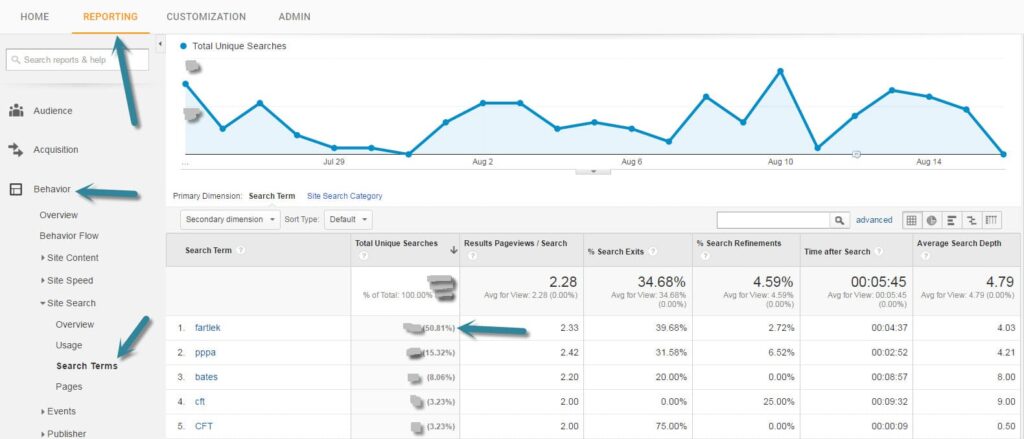
Search Terms from Google Analytics tracking the On-Site Search

What is fascinating about the above report is that for this client they discovered that about half of their search terms were for one specific term (an awkward term but it is a Swedish Running Method)

Let the Search Terms Guide You

For the above project we realized a huge quantity of their users were looking for content that wasn’t easily found on the site. This realization turned into action and we added several menu items to take people directly to the content, as well as creating an entire new specialized website.

Put a reminder on your calendar and keep an eye on what people are searching for when on your site. It could…

  • Give you ideas for new content or posts to write
  • Let you know that you have a navigational issue
  • Aren’t really giving your visitors what they are looking for
Need help setting up WordPress and Google Analytics? Drop us a line and let’s see if we can help you get on the path to better insights about your users.

Not Annotating in Google Analytics? You’re Missing Out

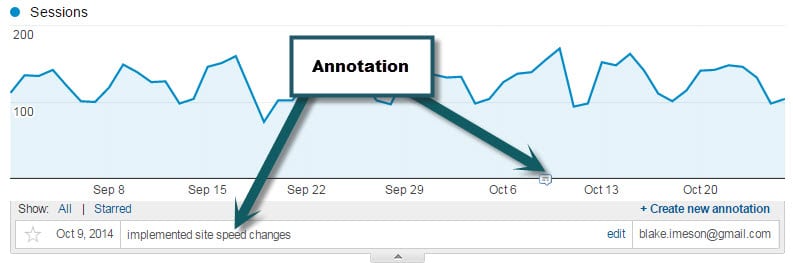
Have you ever made a change to your website hoping it will increase your traffic or specific conversions? How do you track the effectiveness of this change? One simple way to track your efforts is to take advantage of annotations within your Google Analytics account.

What are Annotations in Google Analytics?

google-annotation

Annotating in Google Analytics is simply recording a note that will always be visible. Simple but powerful. Take a look for yourself in the following screenshot.

What would be worth annotating?

  • Site re-launch
  • Major content changes
  • Email campaigns
  • Adding a new plugin

Basically, anything that could  in a meaningful way positively or negatively affect the traffic is worth adding. That way if you are going through your analytics history you might be able to trace back upswings or downswings to things that were done.

How do you annotate?

Super easy, just select the date range in Google Analytics that will encompass the date you want to annotate on and then click the “+ Create new Annotation” button.If you choose the option “shared” then your note will be visible to other users on the Analytics account which can be helpful for the team and for those that may follow after you.