How AI is Changing On-Site Search


AI tools like ChatGPT are reshaping how people search, not just on Google, but on your website too. If your on-site search still behaves like it’s 1999, your visitors are going to notice.

The last two years have been rocked by the explosion and acceleration of AI. Efficiency in some areas, job losses and gains in others – new tools, job positions, ways of working, etc. 

We’re just starting to encounter a new shift – how website visitors search when on a website. 

This is commonly called “on-site search” – it is the familiar search bar within a website that you might reach for if you can’t find what you need via the menu. It could also be the search bar atop a Resource Hub, knowledge-base, blog, documentation portal that you use to search out useful information.  

How people use this search bar is facing a major pivot. 

If you don’t soon pivot with the user behavior change, your site will suddenly be outdated and frustrating your visitors. 

What is the origin of this search behavior change? 

It is of course AI usage. More and more people are starting to utilize ChatGPT, Grok, Copilot, Gemini, etc. The tools are being integrated into all the things. (we have a post coming on AI exhaustion…) 

What was once an elite play area reserved for brave technologists is now quickly becoming mainstream. My wife uses it, my parents, and many of our clients – even the aged elder boomers! (No offense to the above parties) 

Long-form Search Queries

In the previous era, when you needed to use a search bar, you took the concept or question in your head and tried to pare it down and condense it to 1-3 words that you thought might return good results. 

You would perform a search like “healthcare trends” or “tuition cost”. 

Users are starting to think differently.
New tools are training a new way of interacting. 

The new searches are becoming more like “what are the hot healthcare trends in 2025?” and “what is the annual cost of tuition”. The user might even be using speech-to-text so their searches are even more verbose.  

The search queries are becoming more specific and they are expecting a best-fit answer. 

Can you see the problem? 

Right now, most on-site search tools will get tripped up, the more words in the query. The search tools can’t tell which are the important words. It can’t know that you are interested more in content around “trends” than specifically “2025” or “hot” in our above example. 

Natural Language Search

Besides just the pure length (# of words) in queries, people are starting to re-adopt natural patterns of speech. Our tracking of search phrases on client sites is starting to prove this trend. 

People will now start to search the way they would actually pose the question to a friend. A search for “Prerequisites” becomes “What are the prerequisites to applying?” 

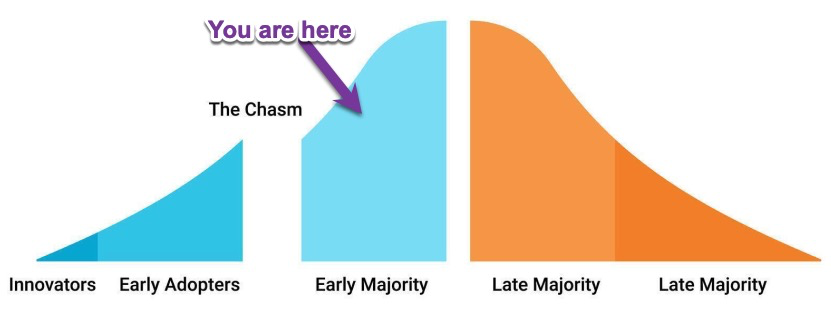
Technology Adoption Lifecycle for AI Search
What AI-Powered Search Actually Does

When search is AI-powered, it better understands the intent of the user’s search rather than just traditional keyword matching. It can utilize powerful language models to automatically: 

  • Understand synonyms (e.g., “enrollment” vs. “registration”)
  • Decipher sentence structure and intent
  • Read into Context (e.g., distinguishing between “apple the fruit” and “Apple the company”)
  • Score relevance of content beyond simple keywords
  • Accommodate follow-up / conversational queries

Big players like Shopify and Notion are rolling out AI-powered search. Mass adoption is next. 

The Implications for Your Website’s On-site Search

1. You may now need AI-powered search

If your visitors expect natural language search and your site falls short, you’ve just delivered a frustrating experience.

Instead, if you have an AI that has indexed your content and can understand sophisticated queries and deliver them exactly the content they need… big win. 

Right now there aren’t many easy-to-add or cost effective options for AI-powered on-site search. (Spoiler alert: we are working on something to change that) 

Frankly many brochure-type small business sites get very little search volume. For them this may be a low impact issue for a year or two. Eventually all search is going to be AI-driven or at least incorporated to some extent. The use of sentiment analysis and providing true relevance is an inevitability. 

I remember when a website being mobile friendly or having an SSL cert to secure it https were optional. 

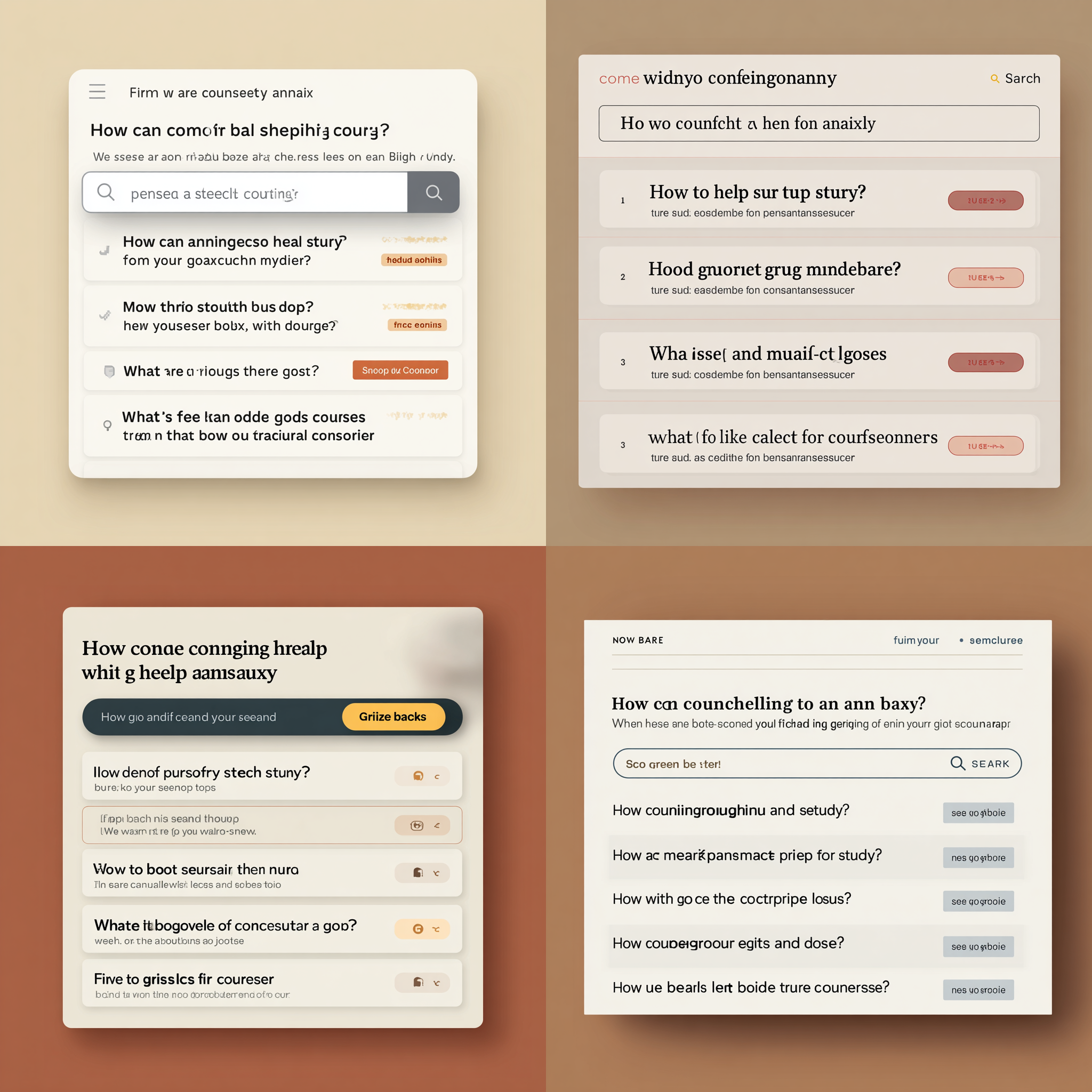
2. Placeholders and Suggested Searches are key hints to make AI search work

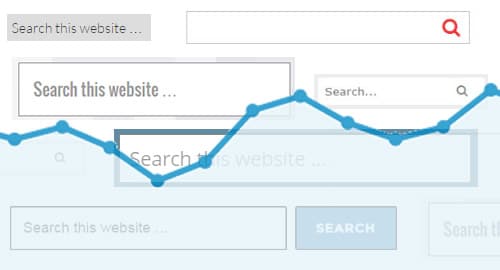
When a visitor sees your search bar, there are subtle visual cues you can provide so they know they can use more sophisticated queries in your search engine. 

Placeholder Text

This is the text that shows up within the search input field. Use this to give an example search that is more sophisticated. 

Suggested Searches

Consider having 4-6 queries right below the search bar that they can either click to search or at the very least this will give them the idea of the kinds of questions they can ask. 

The AI tool nomenclature is prompt suggestion and here is a great article digging into how to do prompt suggestion right

Bonus: populate these with your most common searches. 

Bonus II: Don’t show the suggested searches until after a click on the search input box. 

Even a simple (AI generated) mockup shows how these subtle cues can improve search engagement.
3. Your search bar may need to be wider or expand

If you type or speak a long sentence but the search bar can only show 2-3 words that could be a challenge for the user. 


I think we’re going to see wider (and larger) search bars to allow for long phrases but also visually it is going to tell the user “this is a really helpful tool, use it”. 

What are the positive outcomes from implementing AI-powered on-site search? 

I like to think of success tracking in three groupings

  1. Overall website stats (think pages per visit, time on site) 
  2. Your Key Performance Indicators (fewer support tickets, more conversions) 
  3. Search engagement metrics (searches per visit, clicks on results) 

COMING SOON – Read more in our article “Is Your On-Site AI Search Working? Here’s How to Measure It”

Ready for AI search now? 

We’re building a tool to make this kind of advanced AI search easy to install, cost-effective, and tailored for WordPress and content-heavy sites. 

Want early access? Check out SearchRovr, our answer to On-site AI search for WordPress

What Does “WordPress for Enterprise” Really Mean? – Extending WordPress

wordpress-enterprise

We previously addressed the fact that there isn’t exactly a WordPress Enterprise edition. However, you will regularly see people talking about “WordPress for Enterprise”. What does this mean? How does this differ from “WordPress for bloggers”?

In this post, we’ll look at how you would approach extending WordPress for an enterprise site.

A Different Approach to How WordPress is Extended

When using WordPress to develop your website, the core software can be extended in two ways:

  1. Via plugins
  2. Via your active theme

This extension of capabilities is the same for both blogs and large enterprise websites. However, there is a key difference when approaching extension for enterprise websites – the intentionality of the extension.

Intentional, Custom Development

It would be a gross misuse of resources to custom-develop every feature built for an enterprise website on WordPress. However, custom development is far more common for enterprise-level websites.

For these sites, we don’t want to piece together a feature that is “kinda what you need” using a variety of different plugins. We want to build exactly what you need in the cleanest way possible. This greatly reduces the potential points of failure for the ongoing maintenance of your site and means running your site is much more enjoyable.

Custom Development Security

When doing custom development, there should always be an intentional review for security best practices. For example, when developing any sort of user interaction, a careful review of every action should consider:

  • Capability – Does the user have permission to perform this action?
  • Intentionality – Is the user intending to perform this action?
  • Validation / Sanitization – Am I getting the type of content that I’m expecting?
  • Escaping – Is the content I’m outputting safe to display?

Tip: There are some great engineering standards that I’ll commonly reference when building out features for client projects. 

Careful Vetting of Plugins

There will also be free, open-sourced plugins (there are almost 50k free plugins!) as well as premium plugins used on an enterprise website. For a typical WordPress website, this can be a pretty haphazard process. Search for the feature you want and install the plugin!

But, for enterprise websites, the plugins used will be carefully vetted. Among other factors, a few key things need to be considered:

  • Popularity of the plugin (e.g. how many times has it been downloaded)
  • Reputation of the plugin (what does a Google search reveal)
  • Reputation of the plugin developer 
  • Update history of the plugin (how often and when was the last update)
  • User review history of the plugin
  • Plugin support history (take a look at the support tab threads – is the developer responsive? Are there many problems?) 

The goal is to have all code that extends the default WordPress functionality on your site to be secure and performant. This is a crucial foundation to have set when we start to factor in the considerations needed for hosting and maintaining WordPress for Enterprise.

Sign up for the LimeCuda Zest to learn more about…

Considerations for Hosting and Maintaining WordPress for Enterprise Websites.

Is There a WordPress Enterprise Edition?

Software tends to have “editions”, “levels”, and version numbers. How does WordPress fit in? Is there a WordPress Enterprise “Edition”?

wordpress-enterprise-edition


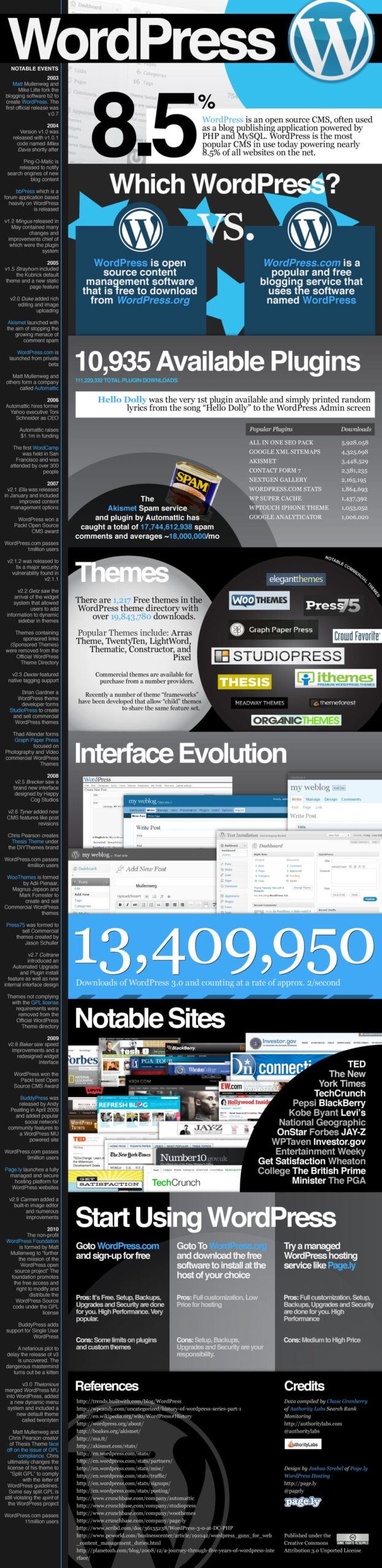
The most confusing part is… there are actually two types of WordPress…

1. WordPress.com / Hosted Platform

This is the flavor of WordPress you can sign up for at wordpress.com. It is a powerful, free tool you can sign up for and be off blogging within minutes. Unless you upgrade, your site domain name will end in “.wordpress.com” This type of WordPress is not ideal for business or enterprise use. There are some good upgrades available but you don’t have server access and the ability to configure function and aesthetics is relatively limited.

2. WordPress.org / Self-hosted / Software

The other type of WordPress is WordPress the software, this is found at wordpress.org. A flavor of this software actually runs the WordPress.com example above. This is the Open Source software that can be run on a server you control.

This is the software we develop on top of and what we mean when we say “WordPress”. This Content Management System (CMS) can flexibly adapt and be a great fit for enterprise needs. It can be a blogging tool, a marketing site, a member portal, a dynamic application – or any combination. It is immensely powerful and well-suited for enterprise use.

Is There a WordPress Enterprise Edition?

No, when speaking of WordPress there is only one software edition. There is a multisite variant of WordPress but it is still all part of the same WordPress. The blogger sharing stories of their travels for their family to read and the Fortune 100 website running WordPress are on essentially the same platform. Granted, there are many ways the software can be extended to make it more suitable to the specific needs of large enterprise companies.

What About WordPress Version Numbers?

Much like operating systems where you have “Windows 7” or “Mac OS X”,  WordPress has version numbers and is constantly improving. For example, WordPress is currently at version “4.7.1”. WordPress iterates rapidly with about 3-4 major releases a year.  These updates generally break down into…

Major Update Releases

This would be 4.7 or 4.8 – this type of update usually has great new features and advancements.

Point Releases / Bugfix / Security Releases

These would be like 4.7.1 or 4.7.2 – they usually fix little bugs or in very rare cases patch a security vulnerability.

Fun fact, each WordPress release is named in honor of a jazz musician.

wordpress-4.6

WordPress is a terrific platform for enterprise use. It has the features, security, scalability, and corporate adoption to make it a terrific contender for blogs, a CMS, or even an Application Framework.
Even though there isn’t a WordPress Enterprise Edition per se, WordPress can be easily tailored to the particular needs of large enterprise companies.

7 Helpful (but Obscure) WordPress Tricks

Did you know these 7 obscure super-secret WordPress tricks? For a while only Chuck Norris knew these!

Screen Options

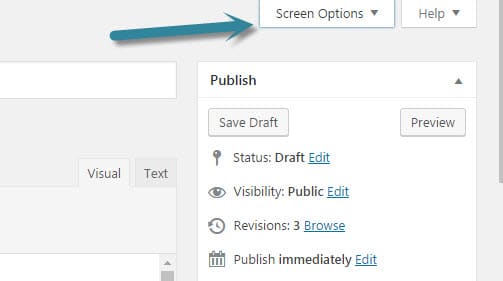
On most views within the WordPress backend there is a very subtle hidden menu named “Screen Options.” This will let you change what shows on the view and sometimes even the number of items.

  • Want to see more pages at once? When viewing all pages change it from 20 to something like 50.
  • Don’t really need to see the Custom Field, Author, or Excerpt meta boxes when editing a post? Hide them.

wordpress-screen-options

Soft Return

If you hit “enter while holding shift” it will let you go down to the next line without adding a bunch of extra space.

Resize and edit images in editor

You can drag the corners of an image in the WordPress Editor to resize the image. Use carefully as the image can be distorted and pixelated if you resize it too much past its normal size. I recommending only resizing it smaller too.  If an image doesn’t look quite right after you upload it, there are simple tools for cropping and rotating.

Easily embed YouTube (and more)

WordPress has this nifty tech called oEmbed. It lets you just paste a link (e.g. to a YouTube video of goats yelling like humans)

Full list of embeddable items.

Paste a URL over Text

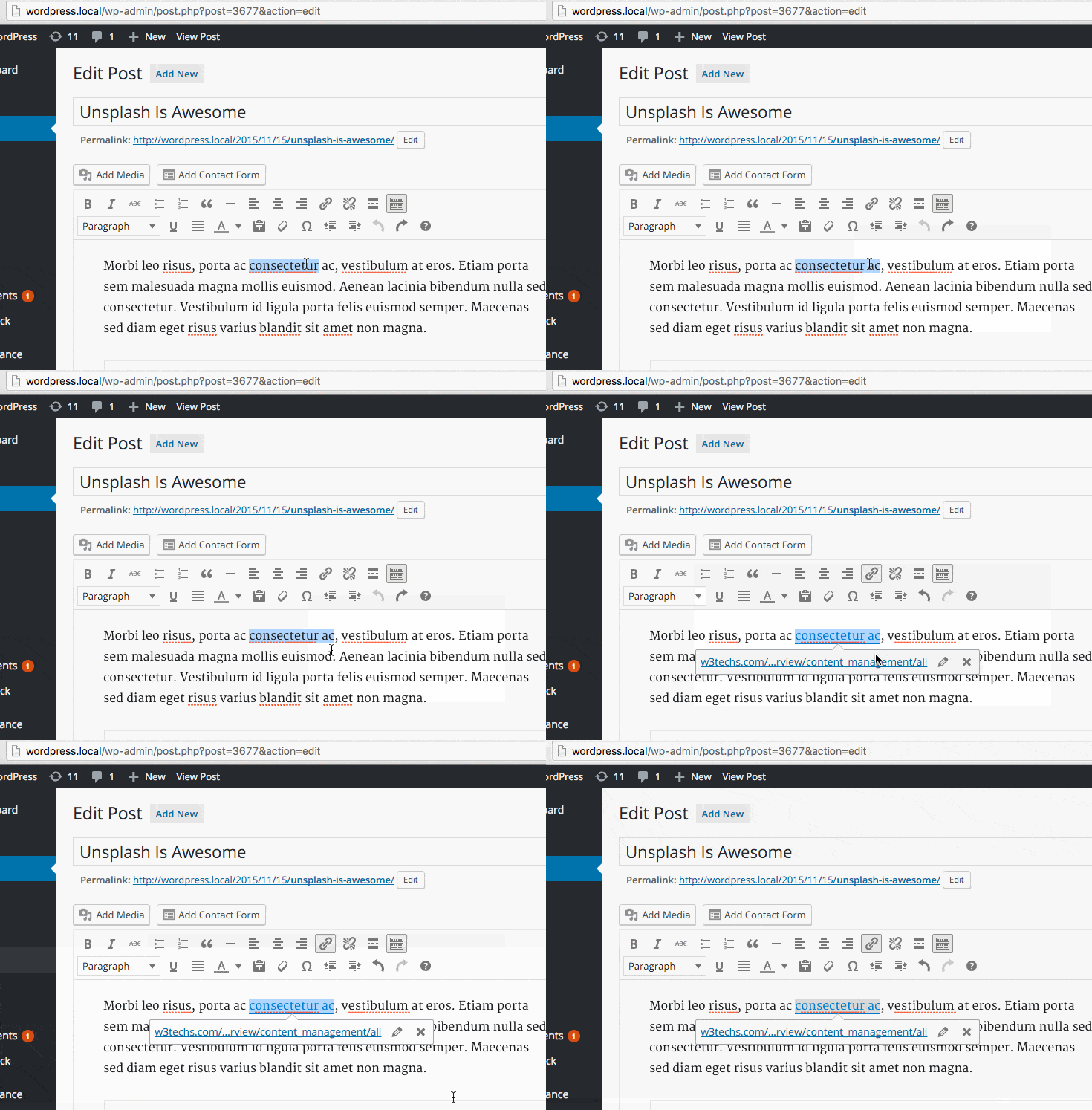
This one feels like magic – you just highlight some text and then paste over it if you have a link you’ve already copied. WordPress will automatically make that text a link!


Text Styling Shortcuts

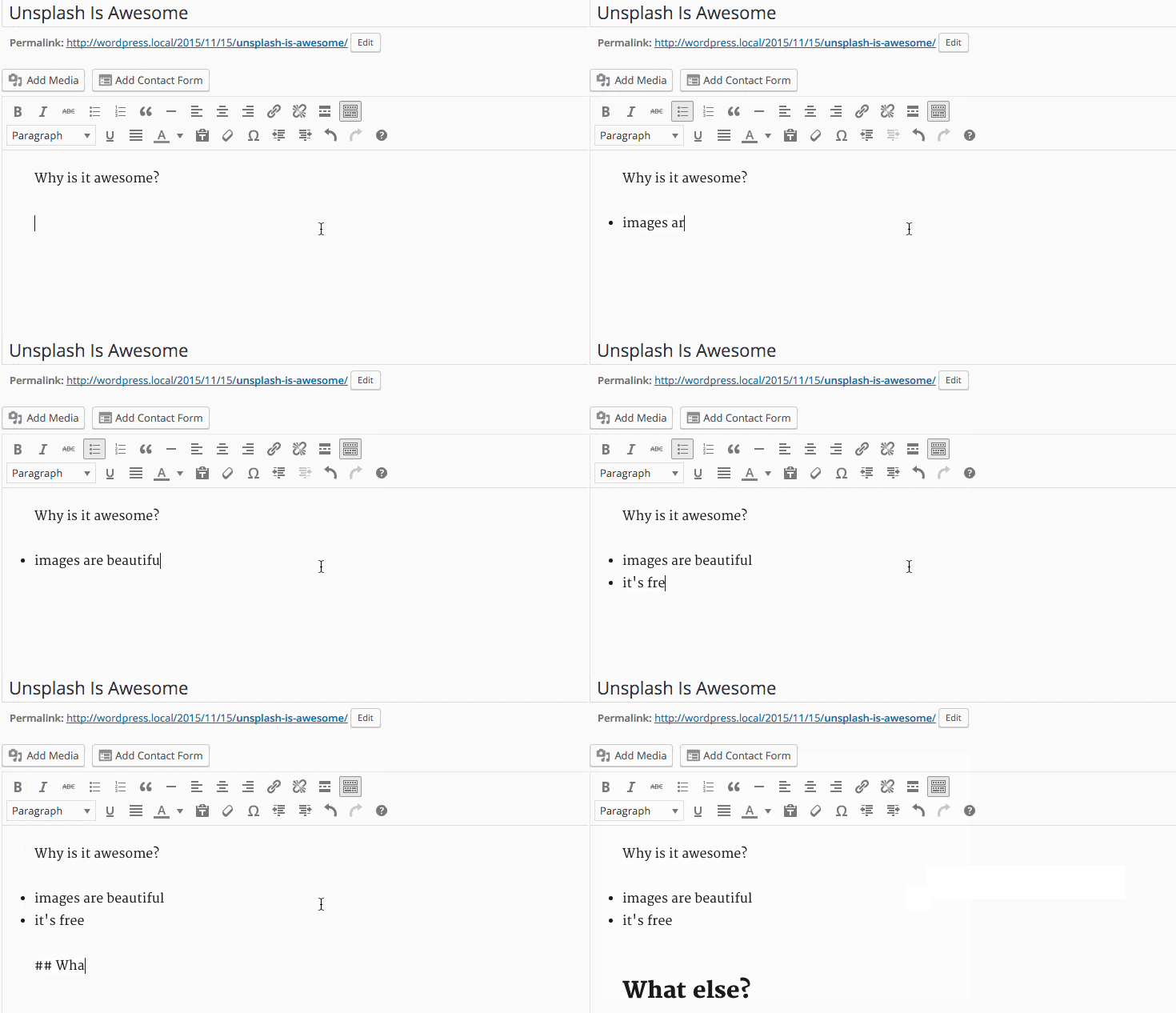
This is similar to Markdown and gives you a quick method for writing your content while adding formatting. Try typing a * and then hitting the spacebar. Magic!

Typing * or – will automatically give you a proper HTML list right away. Same for 1. or 1) Pressing backspace will undo this change. You can also use the undo button, ctrl/cmd+z or esc.

Starting your paragraph with two to six number signs # will convert that paragraph to a heading. Similarly the greater-than symbol > will convert the paragraph to a blockquote.


Bulk Post / Page Editing

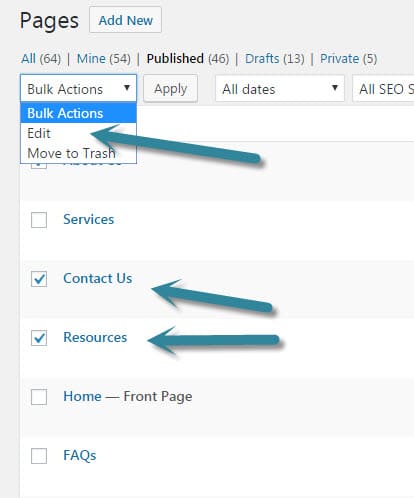
When editing posts or pages you can bulk select and edit a bunch at once. For instance, you could change the author on a bunch of posts at one time.

bulk-edit-wordpress-posts bulk-edit-wordpress-posts-make-changes


In the course of writing this post I found several posts that had the same idea. If you’ve enjoyed this one take a look at these ones for some other tips.


GOOGLE ANALYTICS: How (and Why) to Set Up On-site Search Tracking in WordPress

Tracking on-site search is really easy with Google Analytics and WordPress. See what terms people are searching when using your WordPress site search box.

tracking-on-site-search-google-analytics

What is On-Site Search?

By this we mean when someone is actually browsing your site and uses your site’s search bar to search within your website.

search-bar-in-sidebar         search-bar

Setting up Google Analytics to track Search

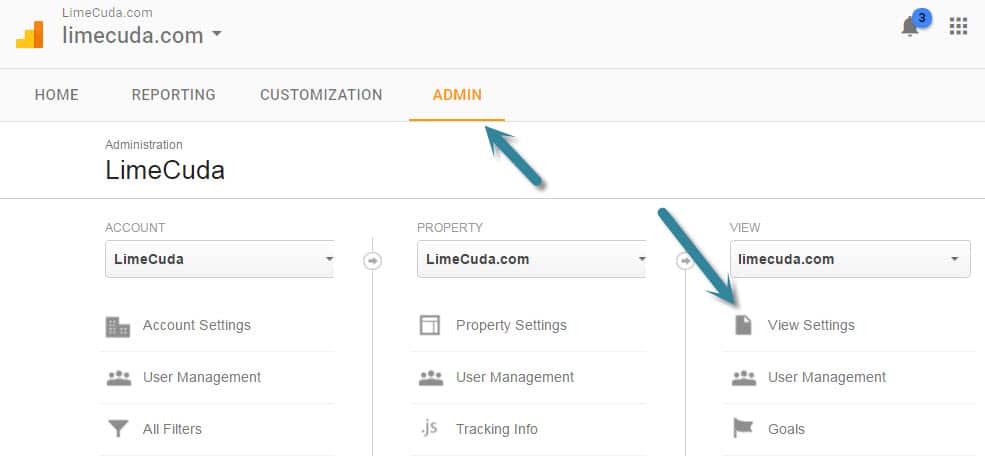
First navigate to the Admin area of your Google Analytics account. Then click the View Settings item underneath VIEW.

google-analytics-admin-search-setting

You’ll see a section towards the bottom like so. Turn Site search Tracking to “ON”. Then make sure there is a Query parameter set of just “s”. This part hooks the WordPress search bar system in to be trackable by Google Analytics.

google-analytics-on-site-search-settings

Where to See the New On-Site Search Data

It may be a couple days before you start to see the data trickling in. Do a couple test searches from other computers to give you some dummy data.

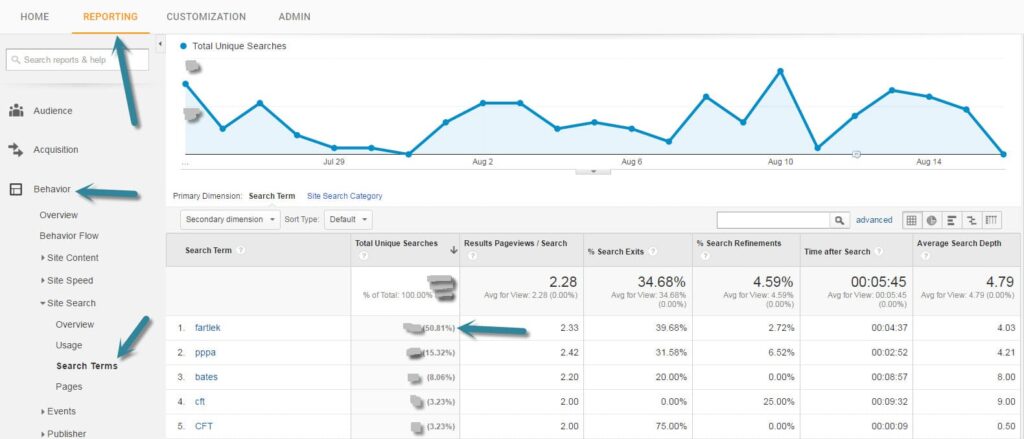
In the Reporting side of Google Analytics look under the Behavior menu item at Site Search >> Search Terms. You’ll see a list of the terms that users searched along with really great data about those visits.

Search Terms from Google Analytics tracking the On-Site Search

What is fascinating about the above report is that for this client they discovered that about half of their search terms were for one specific term (an awkward term but it is a Swedish Running Method)

Let the Search Terms Guide You

For the above project we realized a huge quantity of their users were looking for content that wasn’t easily found on the site. This realization turned into action and we added several menu items to take people directly to the content, as well as creating an entire new specialized website.

Put a reminder on your calendar and keep an eye on what people are searching for when on your site. It could…

  • Give you ideas for new content or posts to write
  • Let you know that you have a navigational issue
  • Aren’t really giving your visitors what they are looking for
Need help setting up WordPress and Google Analytics? Drop us a line and let’s see if we can help you get on the path to better insights about your users.

Video on WordPress – Using YouTube Video Embeds

Thinking of uploading videos directly to WordPress rather than an embed like YouTube? Here’s why that isn’t a good idea.

There are many options available to us when using videos on WordPress. We’ll be looking at the options available over a few blog posts here, however we wanted to kick off with the most accessible option and our most preferred method – embedding YouTube videos.

Pros of Using YouTube Videos on WordPress

YouTube
Firstly, it is free. Self-hosting video or using a premium tool can quickly become an expensive and complicated endeavor. If video isn’t your primary gig, then using a tool like YouTube is probably wise.

Video Loading / Speed

  • Leverage their massive architecture so videos always load quickly
  • Embed codes are intelligent and will load different quality streams based on the viewer’s connection
  • Embed codes play well across most devices – including mobile and tablet

Video SEO and Marketing

  • Your videos can be displayed publicly within YouTube search, this could be just another avenue for someone to find you
  • You can enable monetization and get some share of the ad revenue from your video. This is likely not advantageous if you are hosting marketing or about-type videos.
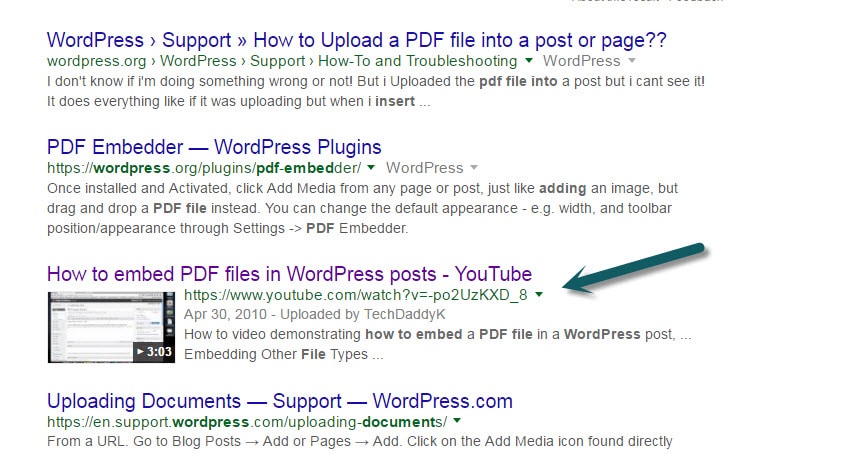
  • Videos may be called out in Google Search as videos. Could help you rank for terms with video. Check out the Yoast Video SEO plugin too.

youtube-wordpress-embed-results-google-search

How a Video can look within Google Search

Video Aesthetics

  • Append tags to a YouTube URL to get special features. Add additional tags using an “&”
    Example: https://www.youtube.com/watch?v=7aP4Fi9bC_U?rel=0&modestbranding=1&autoplay=1

    • Stop unwanted related videos from showing up by adding: rel=0
    • Get a nice subtly branded look by adding: modestbranding=1
    • Have video autoplay (use carefully!): autoplay=1
    • See the full list of YouTube URL parameters available including looping and setting a custom start time
  • Just paste a YouTube URL right into the editor and WordPress will auto-embed the video

Cons of Using YouTube for Videos on WordPress

  • Your video is out of your control and ads will be shown on or near it within YouTube
  • You may not like the related videos that show up when viewing on YouTube
  • It isn’t as classy or enterprise a feel as using something like Vzaar or even perhaps Vimeo

There is so much more you can do with YouTube… embedding playlists or galleries, embedding a live stream, having videos load in lightboxes, etc.

We’re pretty big fans of the combo of YouTube and WordPress. Curious about how the other video services stand up in comparison? Subscribe to our monthly insider email and you’ll get those next blog posts as well as a bunch of other cool content once a month.

Working on a site which needs to leverage video? Please reach out and we’d be happy to chat through the options available.


Configuring WordPress SEO Plugin on Posts + Pages

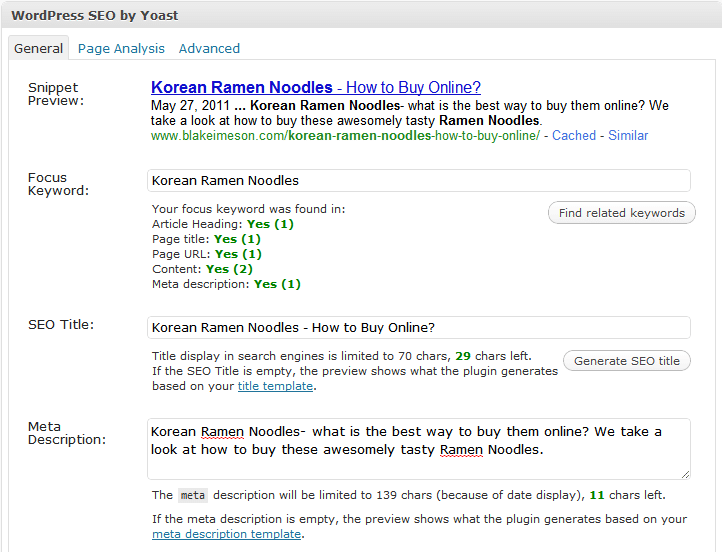
Watch as I quickly go over how to use the powerful WordPress SEO plugin by Yoast on my posts and pages.

We’ve tried many SEO plugins but none are as robust or perfect as this one by Yoast.

Learn how to use it when editing your WordPress Posts + Pages:

I’ll leave you with a couple thoughts (some were in the video)

SEO Title

[arrowlist]

  • Highest value keywords should be towards front of tag
  • Having a longer title with many keywords dilutes the strength of each keyword
  • Use separators like: | – > <
  • The default auto-generation on global settings page. I use %%title%% or %%title%% | %%sitename%%

[/arrowlist]

SEO Description

[arrowlist]

  • Has little SEO value but terms the user searches get bolded
  • Needs to entice the searcher to click thru

[/arrowlist]

Focus Keyword

[arrowlist]

  • Only for your own internal use
  • Only put one keyword/phrase
  • Use this to remind you of where you can naturally use your keyword

[/arrowlist]

Other

[arrowlist]

  • Use /%postname%/ for your permalinks (Settings>>Permalinks) or if concerned about speed and having many posts: /%post_id%/%postname%/
  • This plugin also generates XML sitemaps that you can submit to Google Webmaster Tools
  • Download plugin

[/arrowlist]

Have questions? Send us a message or comment below!

New eBook Released! (Fan Page Exclusive)

LimeCuda just released our first eBook *drumroll*… The Internet Demystified: 8 Essentials to Getting Your Business Online.

A lot of time was spent on this to make very helpful for someone who wants to take a more “Do It Yourself” approach when starting their businesses’ web presence.

The Internet Demystified takes you through the first few steps of starting a website.

limecuda-facebook

To download it just become a fan of our Facebook Fan Page.  (you can always un-fan after you have the eBook)

Enjoy!